Format and Validate Phone Numbers
With our automated solution, you can ensure standardised phone numbers in your CRM. By leveraging a webhook to communicate with the Furball AI app, you can format and validate phone numbers based on the country, ensuring consistent and accurate storage in your CRM. This enhances readability, improves team efficiency, and optimises system operations. Use our webhook in a custom workflow in HubSpot Data Hub (formerly Operations Hub) to automate this process seamlessly.
Use Case
Having standardised phone numbers in your CRM is crucial for your customer-facing team members, as increased readability significantly improves team efficiency and system operations. HubSpot accepts phone numbers in the E.164 format, which can be a challenge when dealing with international numbers. To address this need, we implemented a solution using a webhook to communicate with Furball AI, our in-house application actively used in our customers' portals. This integration allows you to pass information back and forth between HubSpot and the Furball AI web application. Specifically, when a contact record in HubSpot has a known phone number and country, the webhook requests Furball AI to format and validate the phone number according to the country's standards.
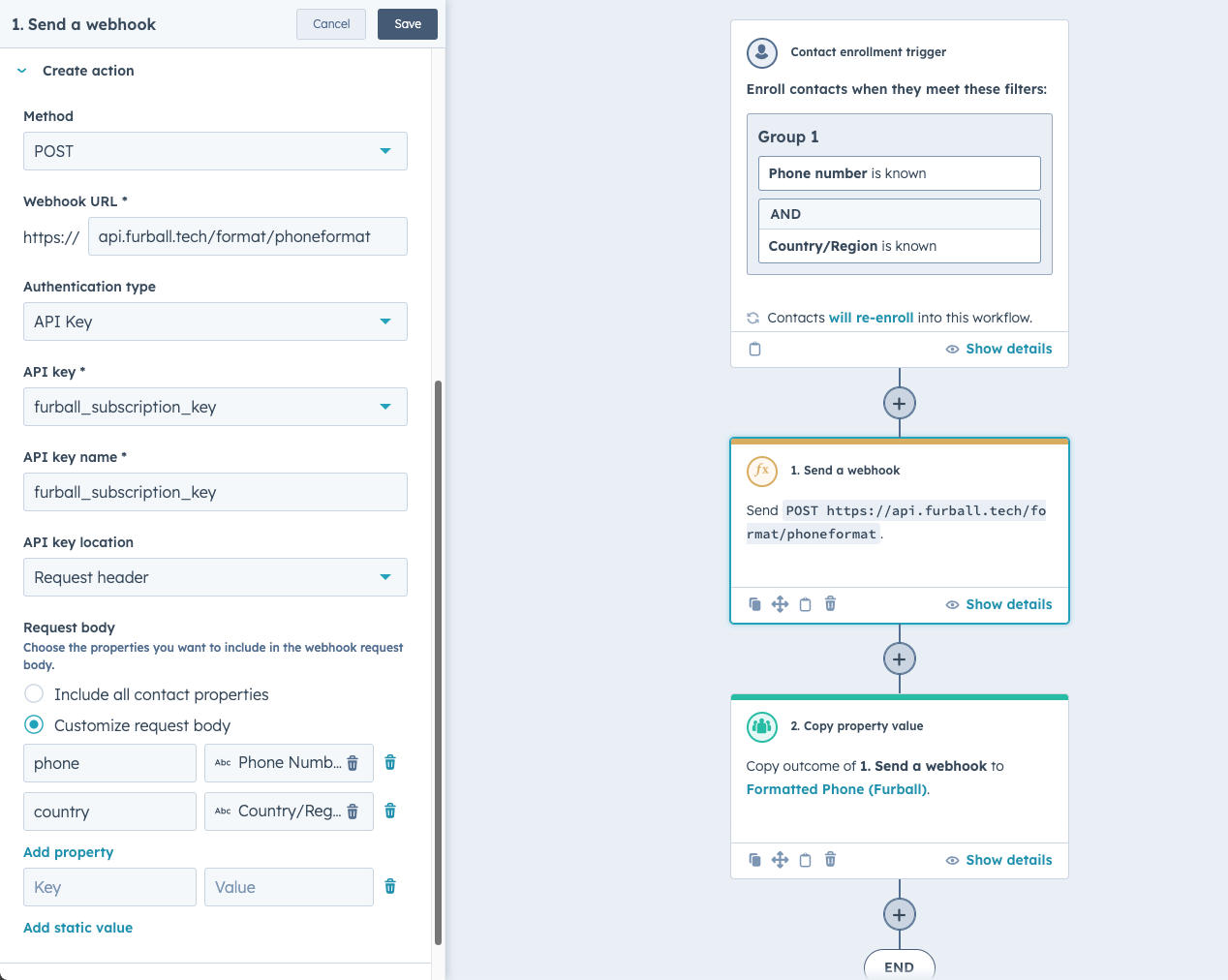
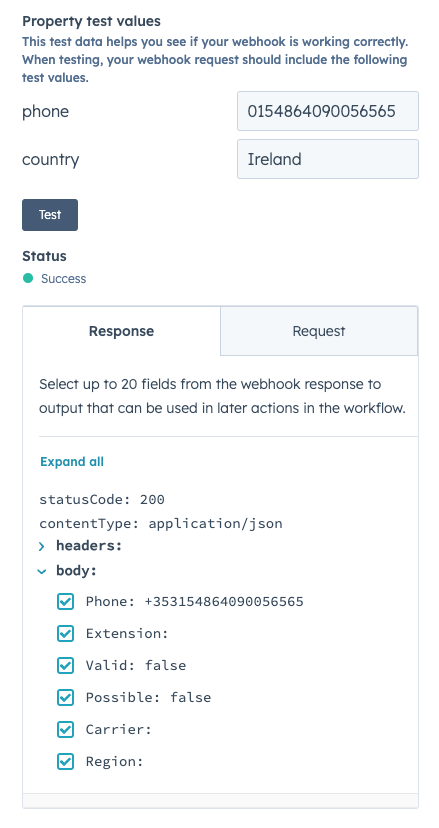
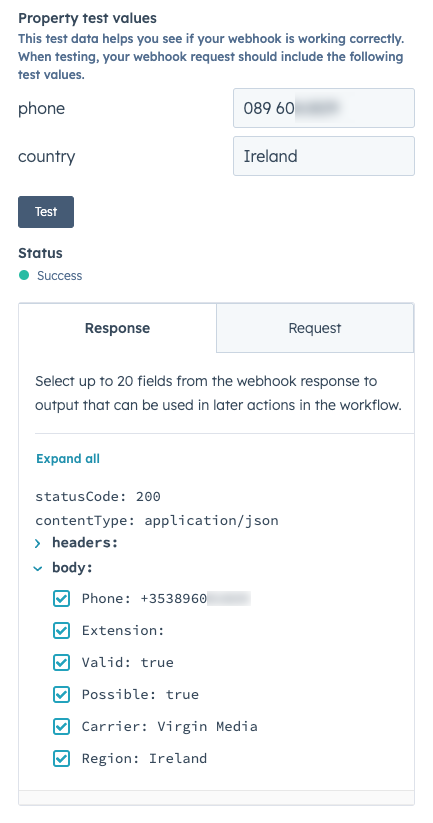
The implementation begins by creating a workflow in HubSpot that triggers the webhook whenever a contact record with a phone number and country is updated or created. The webhook sends a request to Furball AI, including the phone number and country information. Furball AI processes this data, formats and validates the phone number, and sends back the correctly formatted phone number to HubSpot. This response is then used to update the phone number property in the contact record, ensuring that all phone numbers are stored in a consistent and standardized format. You can test the webhook request within the workflow to verify its functionality and view the output before integrating it into your operational processes.
The integration with Furball AI provides a reliable and efficient solution for maintaining data integrity. By using this custom workflow in HubSpot, you can automate a previously manual task, reducing errors and improving the overall efficiency of your data management operations. To use this solution, please fill out the API Key request form.
Step-by-Step Instructions for Webhook Action Workflows:
To use webhooks in HubSpot workflows, follow these step-by-step instructions:
Setting Up a POST Request
-
Navigate to Workflows:
- In your HubSpot account, go to Automations > Workflows.
- In your HubSpot account, go to Automations > Workflows.
-
Select or Create a Workflow:
- Click the name of an existing workflow or create a new workflow.
- Click the name of an existing workflow or create a new workflow.
-
Add an Action:
- In the workflow editor, click the + plus icon to add an action.
- In the workflow editor, click the + plus icon to add an action.
-
Select Webhook Action:
- In the left panel, under the Data ops section, select Send a webhook.
- In the left panel, under the Data ops section, select Send a webhook.
-
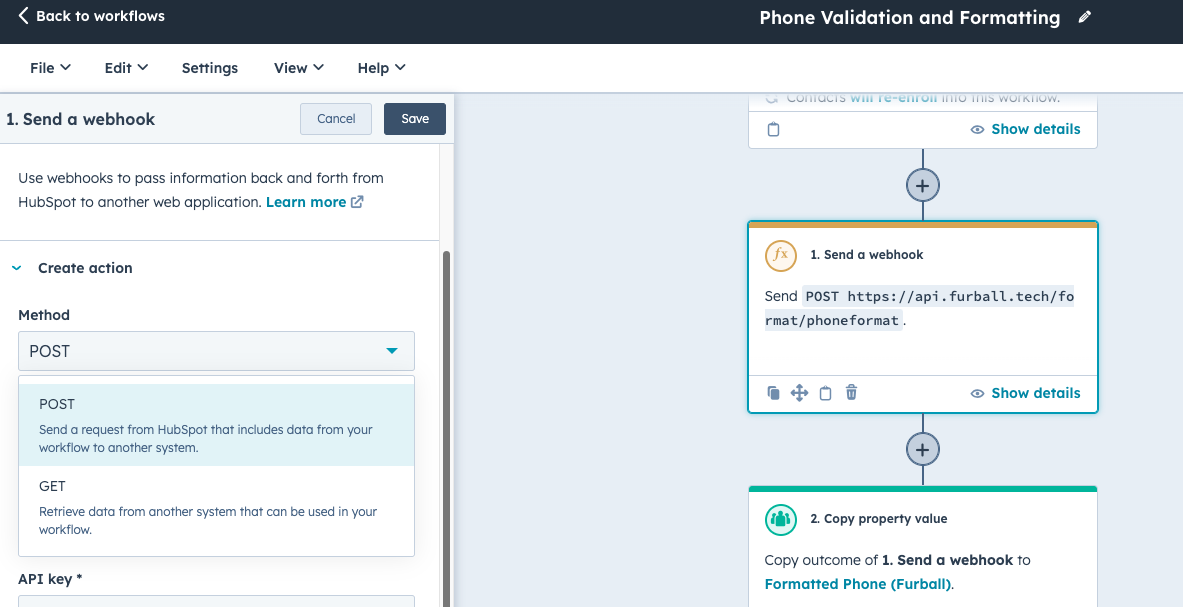
Choose POST Method:
- Click the Method dropdown menu and select POST.
- Click the Method dropdown menu and select POST.
-
Enter Webhook URL:
- Enter the webhook URL. Note that webhook URLs must begin with HTTPS
- Enter the webhook URL. Note that webhook URLs must begin with HTTPS
-
Set Authentication Type:
- Click the Authentication type dropdown menu and select your preferred authentication method:
- API Key: Enter your API key name and select whether it will be included in query parameters or the request header. For requests to HubSpot APIs, select a secret with the format.
-
Customise Request Body (Optional):
- To include all properties, select Include all [object] properties.
- To include only specific properties, select Customize request body:
- Enter the Key and select a property for HubSpot properties. In this case include the properties Phone Number and Country/Region. Use the query parameters phone and country respectively.
- Enter the Key and select a property for HubSpot properties. In this case include the properties Phone Number and Country/Region. Use the query parameters phone and country respectively.
-
Save the Action:
- Click Save at the top.
- Click Save at the top.
Other Example Use Cases
-
-
-
Posting HubSpot Contact Data to Another System:
- When a contact fills out a form, use a POST request to send their data to an external CRM
- When a contact fills out a form, use a POST request to send their data to an external CRM
-
Sending Deal Data to an External System:
- Use a POST request to send deal data to a shipment-handling system to create a purchase order
-
-
If you want to use furball AI for your phone formatting and validation, use case. Please fill out this form to request access.
Please note that this is only available to the HubSpot customer event or if explicitly offered by Cat Media product or implementation teams.

Looking for Code Snippets?
Check out the HubSpot Code Library
This comprehensive collection offers numerous possibilities to streamline your marketing efforts, enhance customer engagement, and automate complex business processes. Each use case is a practical solution using HubSpot's powerful automation tools, catering to both beginners and advanced users.
Ready to ensure standardised phone numbers in your CRM?
Leverage our Furball AI app integrated with HubSpot to automate phone number formatting and validation. This solution will enhance data accuracy, streamline your CRM processes, and boost team efficiency. Contact us today for expert assistance and make the most of our programmable automation and Data solutions.
